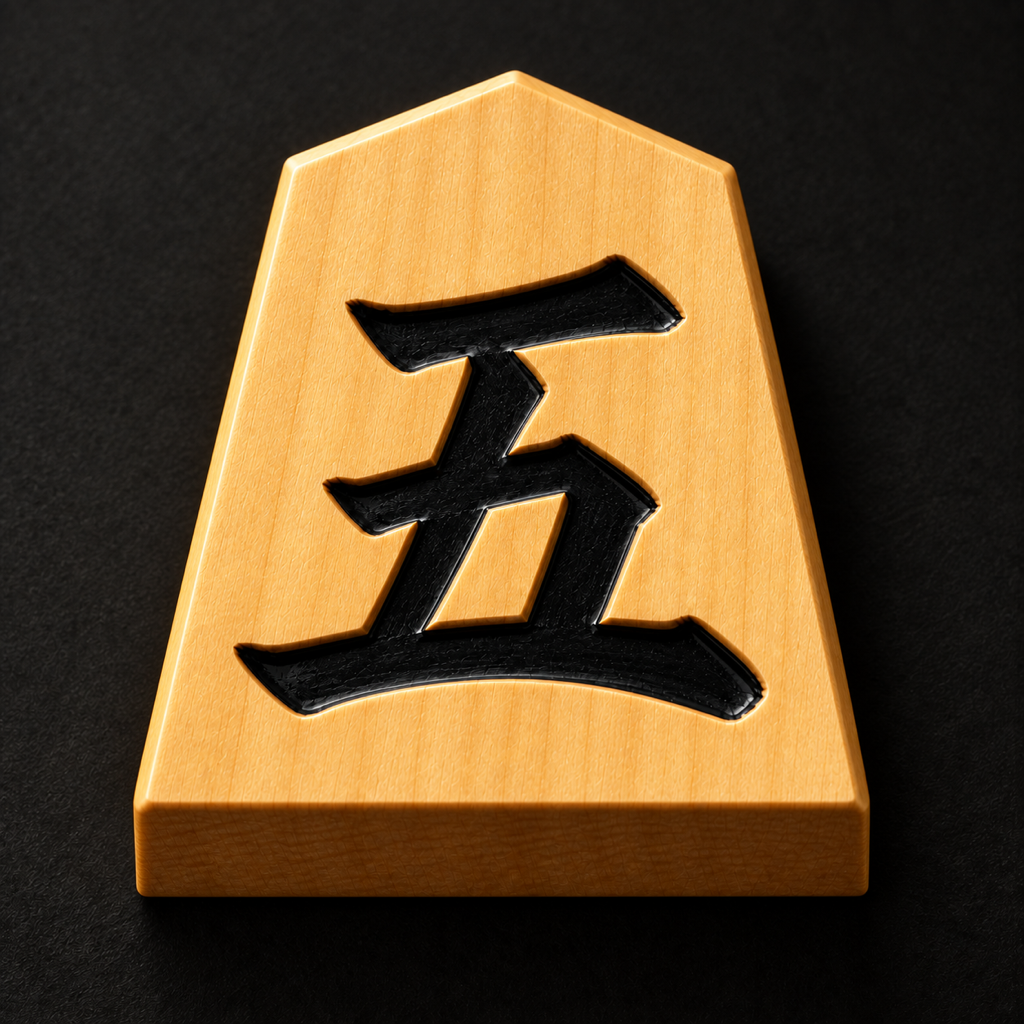


A small board. A world of possibilities.
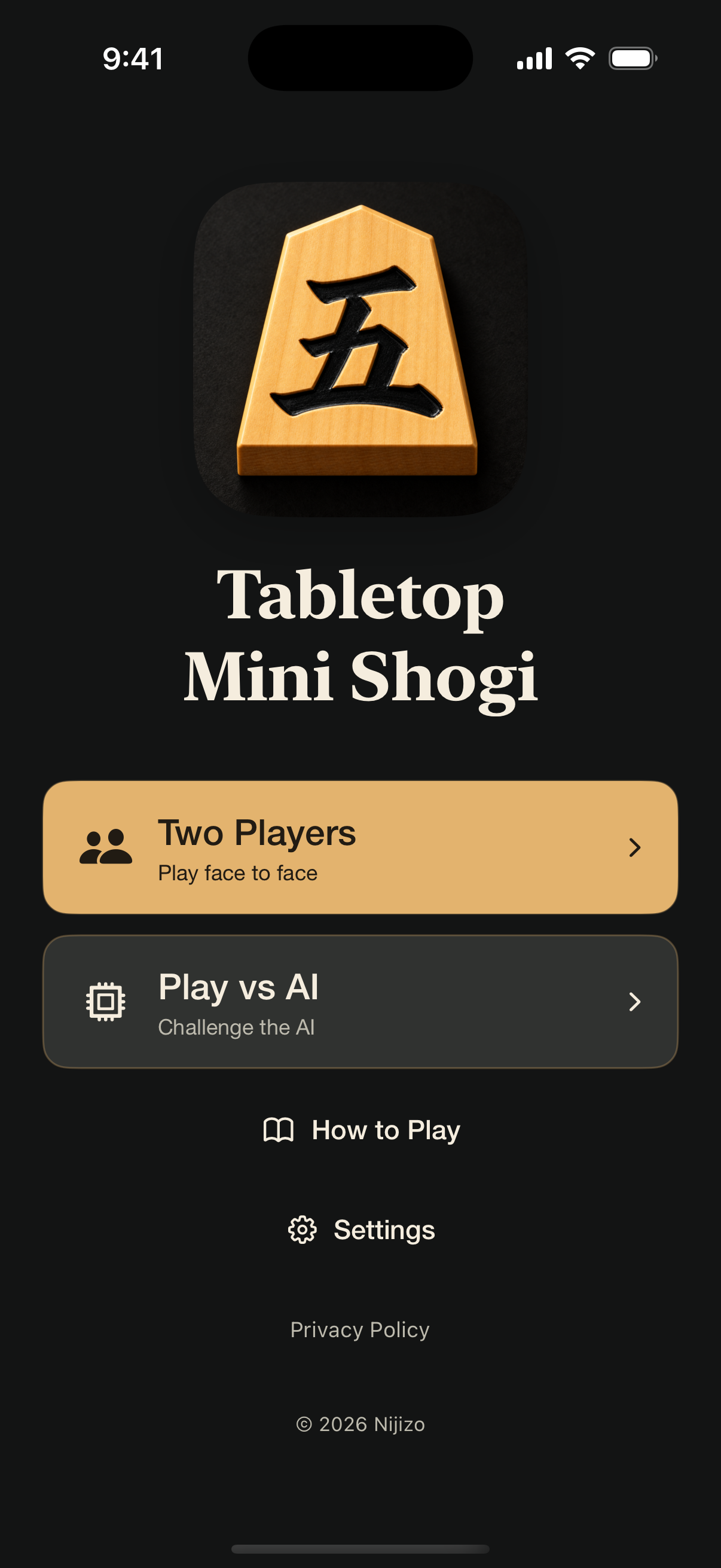
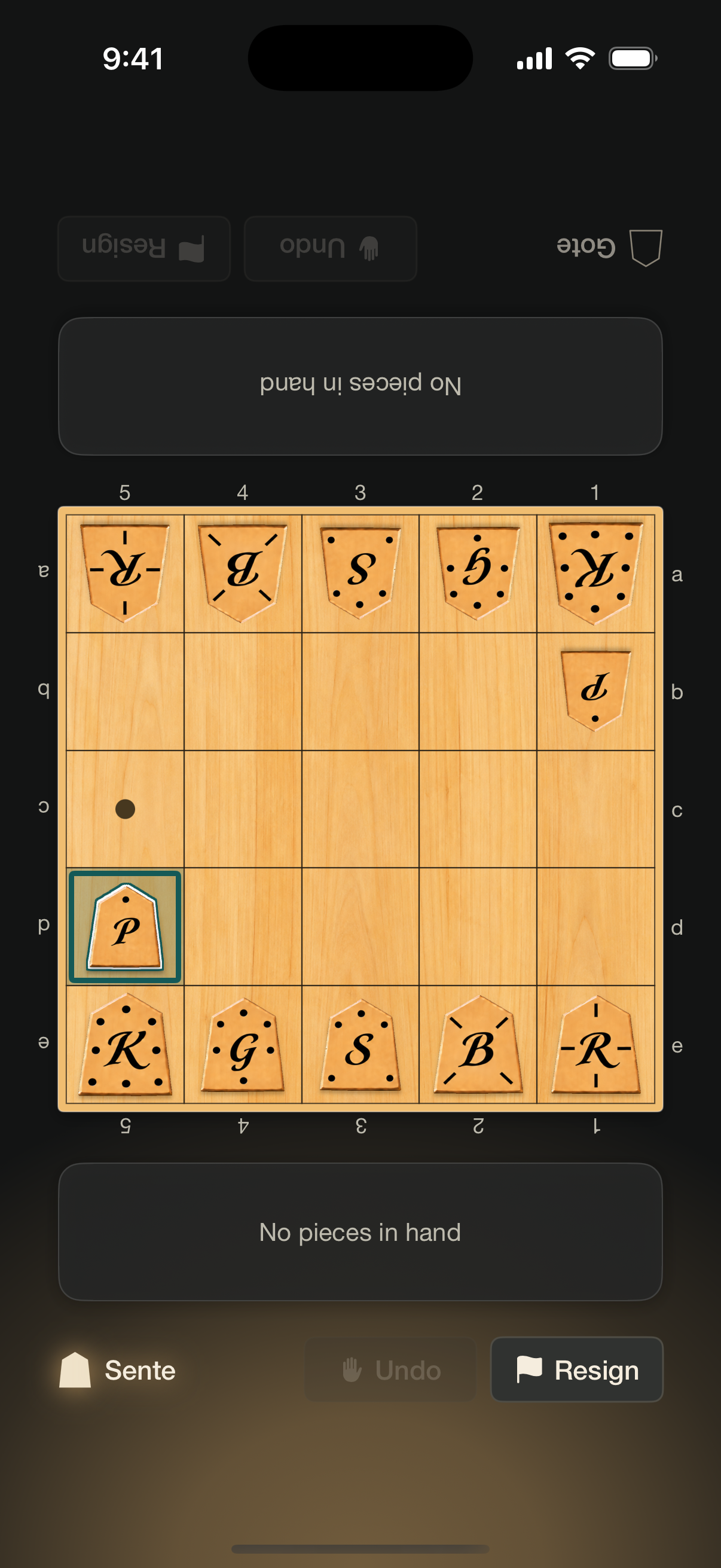
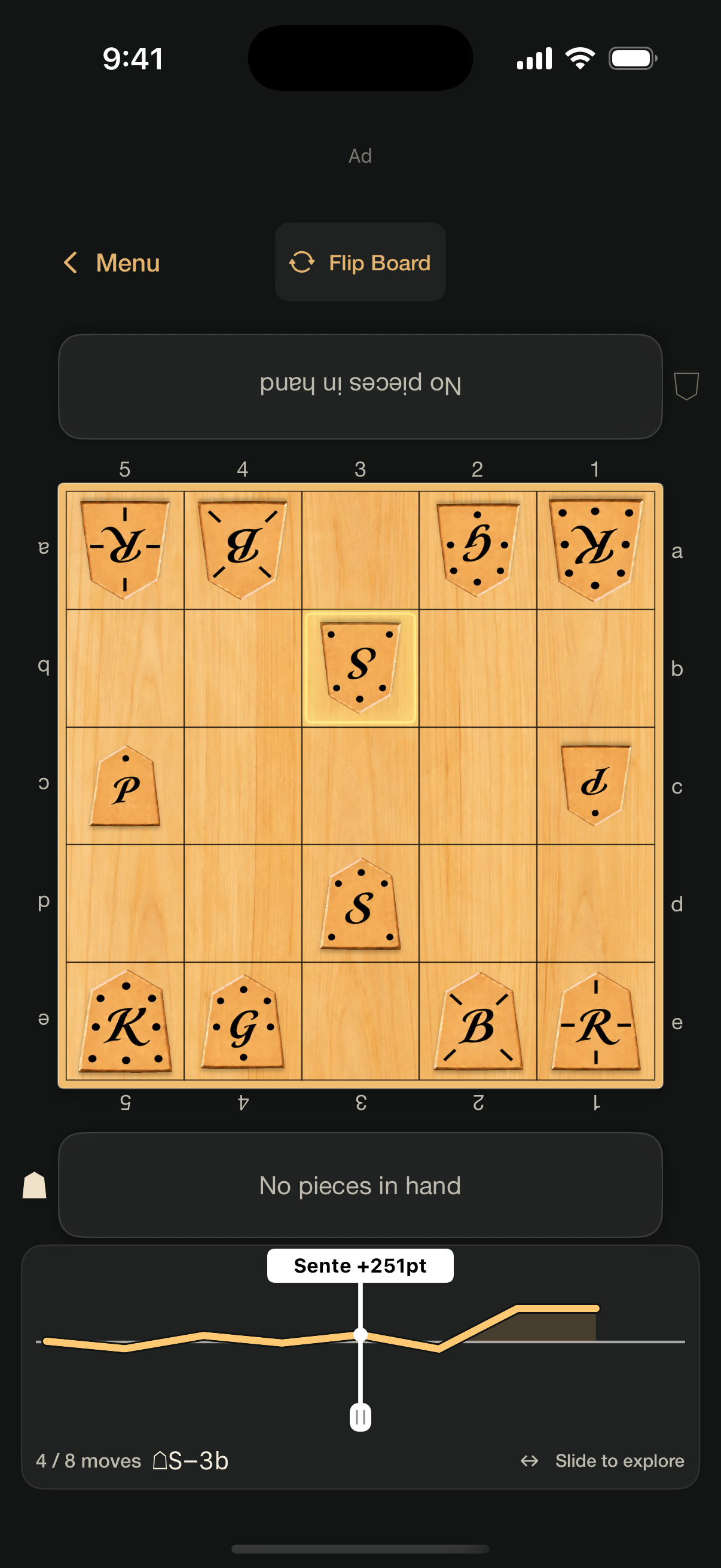
iPhone screens: wooden pieces, a simple menu, and an interactive game review.
About the App
Tabletop Mini Shogi is a shogi app designed to be played by two people sitting across from a device placed flat on a table. Treating the device itself as the board is what makes this app unique.
5×5 Mini Shogi is a compact variant of traditional shogi played on a 5×5 board. It uses six types of pieces — 王将 / 玉将 (King), 飛車 (Rook), 角行 (Bishop), 金将 (Gold), 銀将 (Silver), 歩兵 (Pawn) — shown in-game with single kanji characters, following the same rules as full shogi. A single game is quick, making it great for beginners and seasoned shogi players alike.
Pieces
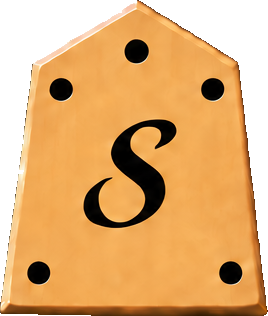
Mini Shogi uses 6 types of pieces.
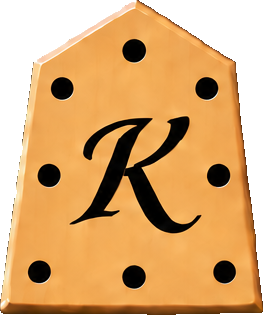
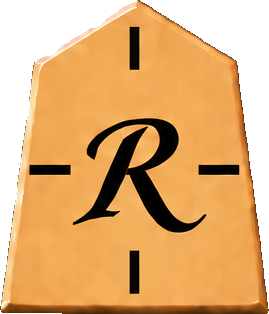
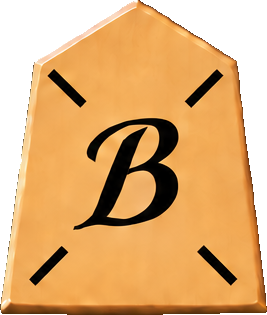
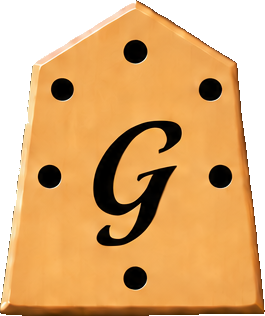

Promotion
A piece that enters or exits the opponent's promotion zone (the farthest rank — only 1 rank in Mini Shogi) may promote. Pawn (歩) and Silver (銀) move like Gold when promoted; Rook (飛) becomes 竜 and Bishop (角) becomes 馬, gaining additional moves.
How to Play
- Select “Two Players” or “Play vs AI” from the menu. For “Play vs AI,” choose Easy, Medium, or Hard under “AI Difficulty,” select Sente or Gote under “Your Side,” then tap “Start Game.”
- For two-player mode, place your phone or tablet flat on the table and sit across from your opponent.
- Tap a piece to select it — valid destination squares will be highlighted.
- Tap a highlighted square to move the piece. You can promote when entering the opponent's zone.
- Captured pieces become your "hand pieces" and can be dropped onto any empty square on your turn.
- Checkmate your opponent's King to win. After the game, use “Review Game” to replay the match.
Captured Piece Rules
Pieces captured from your opponent can be dropped onto any empty square on your turn. The following restrictions apply:
- ▸ No double pawn (Nifu) — You cannot drop a Pawn into a file where you already have a Pawn.
- ▸ No immovable drop — You cannot drop a Pawn on the opponent's farthest rank (where it has nowhere to move).
Undo
Tap the “Undo” button immediately after the opponent moves to revert to the previous position. In “Play vs AI,” both your move and the computer’s move are undone together.
Review Game
Slide across the evaluation graph to move through the game. The white vertical line marks the current position. Move pieces to explore a variation, tap “Main Line” to return, or use “Flip Board” to review from the other side. Tap “Menu” to leave. Use “Review Last Game” in the menu to reopen the last game.
Play vs AI
Choose from three difficulty levels to play against the AI. Easy is great for learning, while Hard will challenge even experienced players.
| Level | Description |
|---|---|
| Easy | For those new to shogi. Relaxed pace, easy to beat. |
| Medium | For players who know the rules. A solid challenge. |
| Hard | Serious strength. Requires careful reading ahead. |
Medium and Hard levels use a fast search engine that reads several moves ahead (up to 12 plies at Hard, thinking for up to 3 seconds per move) for a genuinely competitive game.
Features
Two Players
Place your device on the table and play with a friend. One device, two players.
Play vs AI
Choose Easy, Medium, or Hard and play against the computer.
Review Game
Replay and analyze any game move by move to improve your play.
Undo
Undo the last move to try a different approach without pressure.
Phone & Tablet
Optimized for iPhone, iPad and Android. Plays great on any screen size.
Traditional Design
Kaya board × lacquer-black theme for an authentic Japanese aesthetic.
Requirements
- iPhone / iPad: iOS 17.0 or later
- Android phone / tablet: Android 8.0 or later
Advertising and Usage Analytics
The app may show banner ads during solo games and reviews, and full-screen ads at breaks after games.
We send usage information about features such as games and reviews to help improve the app. Sharing is on by default. Turn it off at any time under “Settings” → “Usage Analytics” → “Share usage data” in the menu.
In the EEA, the United Kingdom, and Switzerland, a consent screen appears before the first ad, and neither ads nor usage sharing begin until you consent. You can change your choice at any time under “Ad Privacy” in the menu.
See our Privacy Policy for information collected and advertising choices.
Settings
Open “Settings” from the menu. Under “Piece Notation,” choose “Follow App Language,” “Kanji,” or “English Letters.” By default, Japanese uses kanji and English uses letters. Your selection applies to the board, captured pieces, and piece guides, and is saved between launches.
English letters: K = King, R = Rook, B = Bishop, G = Gold, S = Silver, P = Pawn. Promoted pieces use +R (Dragon), +B (Horse), +S (Promoted Silver), and +P (Promoted Pawn).
“Usage Analytics” and its “Share usage data” switch are also in Settings.
Contact
For questions, feedback, or support, please reach out via email.